
How do you send a mass email?
You can send a mass email from Gmail or Outlook for small, occasional batches, but both cap how many you can send per day and need a workaround to personalize each message. A dedicated desktop sender like Mass Mailing News personalizes every email, sends through your own SMTP, and has no daily cap beyond your provider’s.
Which way of sending mass email is right for you?
| Method | Best for | Sending limits | Personalization |
|---|---|---|---|
| Gmail (BCC or add-on) | Small, one-off sends | About 500/day (2,000 on Workspace) | Manual, or via an add-on |
| Outlook + Word mail merge | Windows users with a short list | Your mail provider’s limit | Mail-merge fields |
| Desktop sender (Mass Mailing News) | Regular personalized campaigns | Set by the SMTP you choose | Built-in mail-merge |
How do you send a mass email from Gmail?
For a handful of recipients you can put addresses in the BCC field so they don’t see each other. Beyond that, Gmail’s daily limit (about 500 on a free account, 2,000 on Workspace) and its lack of built-in mail-merge get in the way. A tool that uses your Gmail SMTP lets you personalize and send properly within those limits.
How do you send a mass email in Outlook?
Outlook can send personalized mass email through Word’s mail-merge feature: write your message in Word, connect a contact list from Excel, and merge to email. It works for short lists, but it is fiddly, offers no tracking, and is bound by your mail provider’s daily send limit — which is why many people move to a dedicated sender.
How do you send an email to multiple recipients individually?
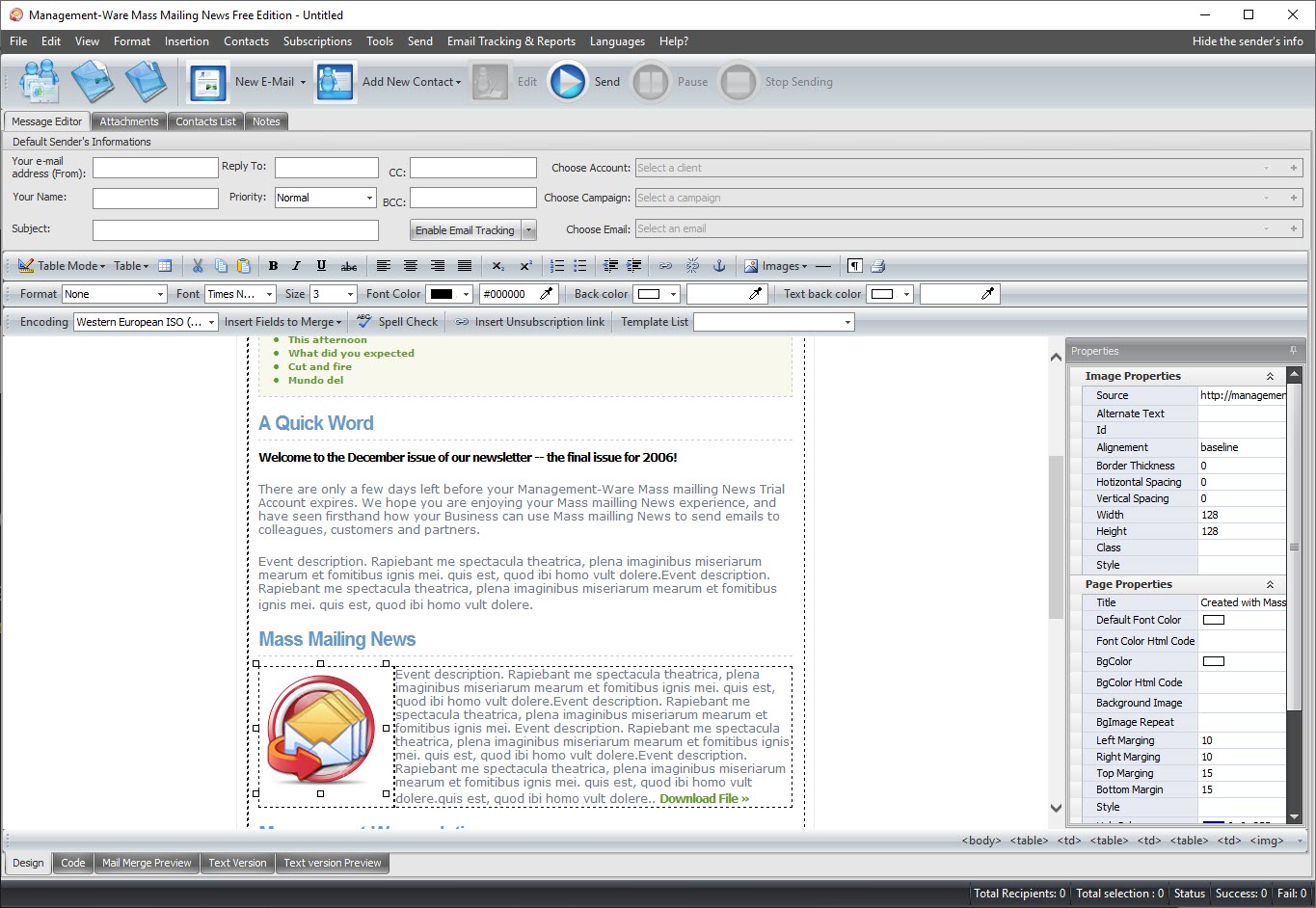
Don’t put everyone in the To or CC field — that exposes addresses and looks like spam. Instead use mail-merge, which sends each person their own separate copy with their name and details filled in. Mass Mailing News does this automatically from your contact list, as shown in its message editor below.
How do you send bulk email with Mass Mailing News?
It takes four steps, from importing your list to sending or scheduling the campaign.

Frequently Asked Questions
How do you send a mass email?
You can send a small batch from Gmail or Outlook, but both cap daily volume and need a workaround to personalize each message. A desktop sender like Mass Mailing News personalizes every email with mail-merge, sends through your own SMTP, and tracks the results.
How do you send a mass email from Gmail?
For a few recipients, use the BCC field so addresses stay hidden. For more, Gmail limits you to about 500 emails a day (2,000 on Workspace) and has no built-in mail-merge, so use a tool that sends through your Gmail SMTP and personalizes each message.
How do you send a mass email in Outlook?
Outlook can send personalized mass email through Word's mail-merge: write in Word, connect an Excel list, and merge to email. It suits short lists but offers no tracking and is bound by your provider's daily send limit.
How do you send an email to multiple recipients individually?
Use mail-merge rather than the To or CC field, so each person receives their own separate, personalized copy and no one sees the other addresses. Mass Mailing News does this automatically from your contact list.
How do you send bulk email with Mass Mailing News?
Four steps: import your contacts from Text, Excel or XML; compose your message and add mail-merge fields; connect your own SMTP, including Gmail over SSL/TLS; then send now or schedule it and track opens and clicks.


